


I love my iPhone, and I find so many useful ways to use it throughout the day. For instance, when I’m about to go to a meeting and want to freshen up my lipstick, I often use my front-facing camera as a mirror! But I’ll be the first to admit that there’s a lot I don’t know about my phone too. And I recently got an idea of just how much I don’t know about the device I carry around all day!
Related: 50 Brilliant Ways To Use The Camera In Your Smartphone
I posted a story on my Instagram profile a while ago to share a discovery I had made about the Email app. I learned that if you swipe left hard and fast, you can quickly archive your emails. To my surprise, I received a TON of responses to that Instagram story! My Instagram followers are obviously very tech-savvy people, because they had a lot of their own great iPhone tips to share! In fact, I learned so much from their responses that I decided to write a whole post on the subject. Here are 11 tips and tricks about iPhones that you may not have heard before!
Related: The One Easy Decluttering Project You Should Do ASAP
11 iPhone Hacks You Didn’t Know About
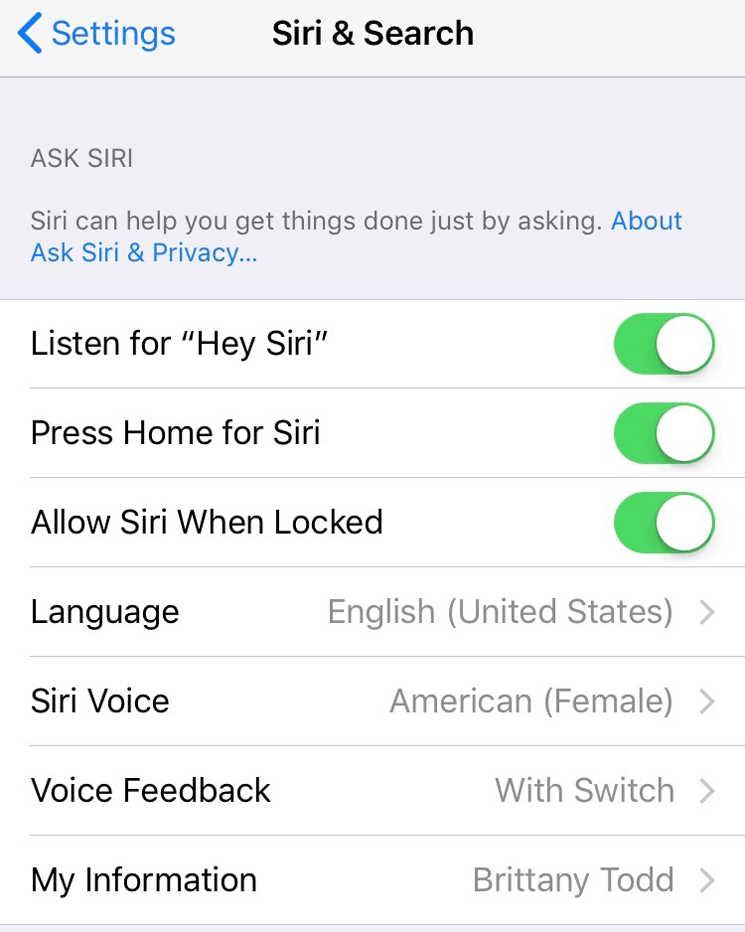
1. Hands-Free Siri
There are many situations where you might want or need to use Siri when you don’t have your phone in your hand. You might be in the middle of cooking, or (heaven forbid) you might have fallen and need help! In these situations, it can be helpful to have Siri at the ready to help you with whatever you need. All you have to do is adjust a few settings!
Go to “Siri & Search” in the Settings menu, then turn on the toggle switch that says “Listen for ‘Hey Siri.’” Make sure you also have the toggle for “Allow Siri When Locked” turned on too! Once those settings are on, just say “Hey Siri” to talk to her anytime you need.
Related: 11 Photos You Can Take That Will Make Your Life Easier

2. Emergency Preparedness
Check out the “Emergency SOS” section of the Settings menu. There’s an option that enables your phone to contact emergency services if you press the side button 5 times in rapid succession. This could be very useful if you ever find yourself in a dangerous situation! You can also use the Health app to set emergency contacts, which will be listed on your Medical ID. This helps emergency responders to know who to contact if you’re involved in an accident or if you need help.
Related: 11 Surprisingly Useful Features That Are Hidden In The Notes App
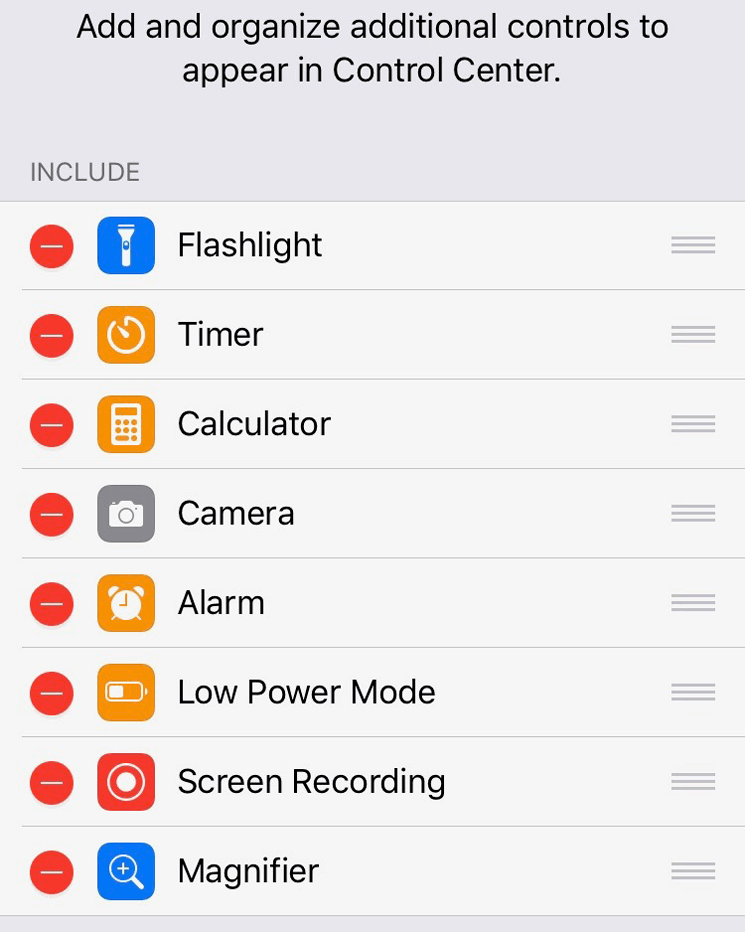
3. Custom Control Center
Go to the Control Center section in the Settings menu to easily customize it to fit your specific needs and wants. (If you’re not sure what the Control Center is, it’s that handy menu that pops up when you swipe up from the bottom of your iPhone.) Here are a few of our favorite customizations:
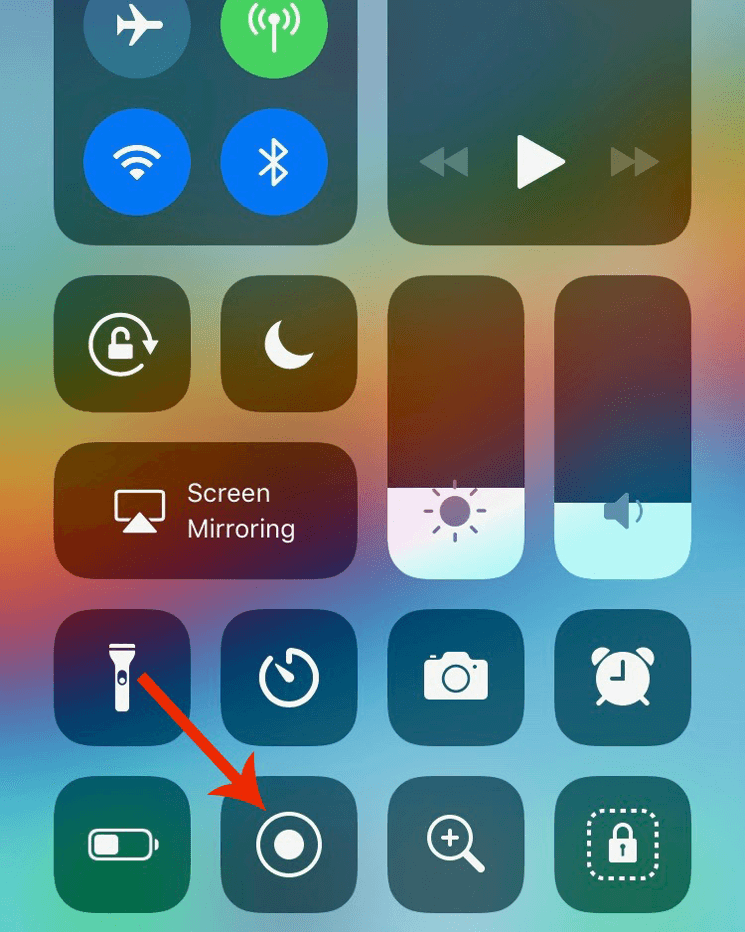
- Add Screen Capture capabilities! The button looks like a target, and it allows you to record video of what’s happening on your screen, like a moving screenshot.
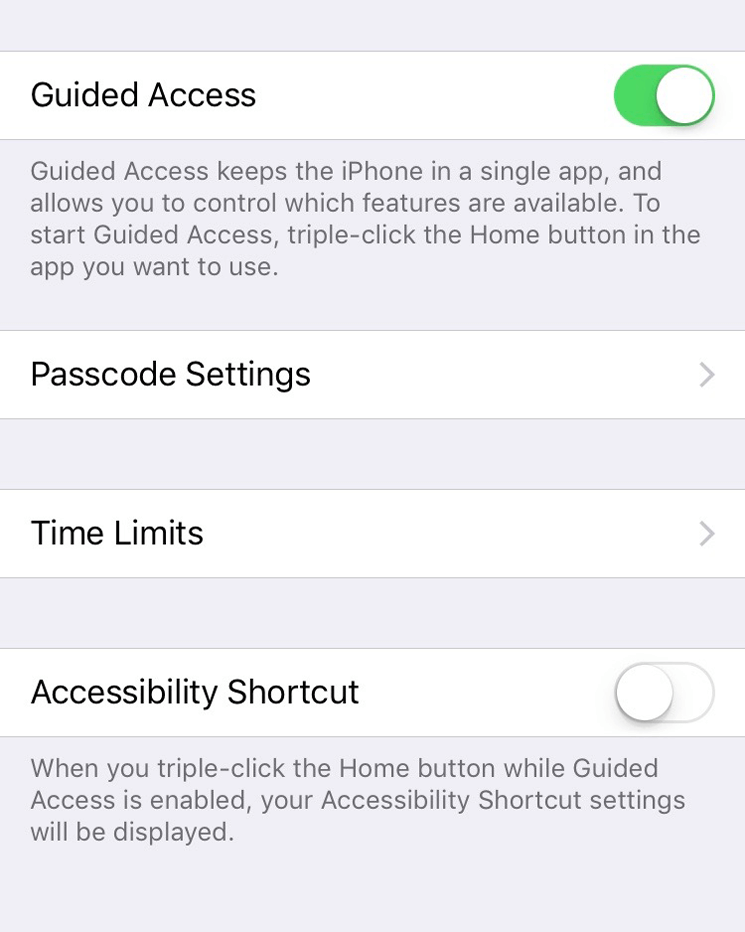
- Turn on Guided Access! When turned on, it requires a passcode to leave an app. This is great for parents who want to let their kids play a game or watch a show, but want to keep them out of their other apps.
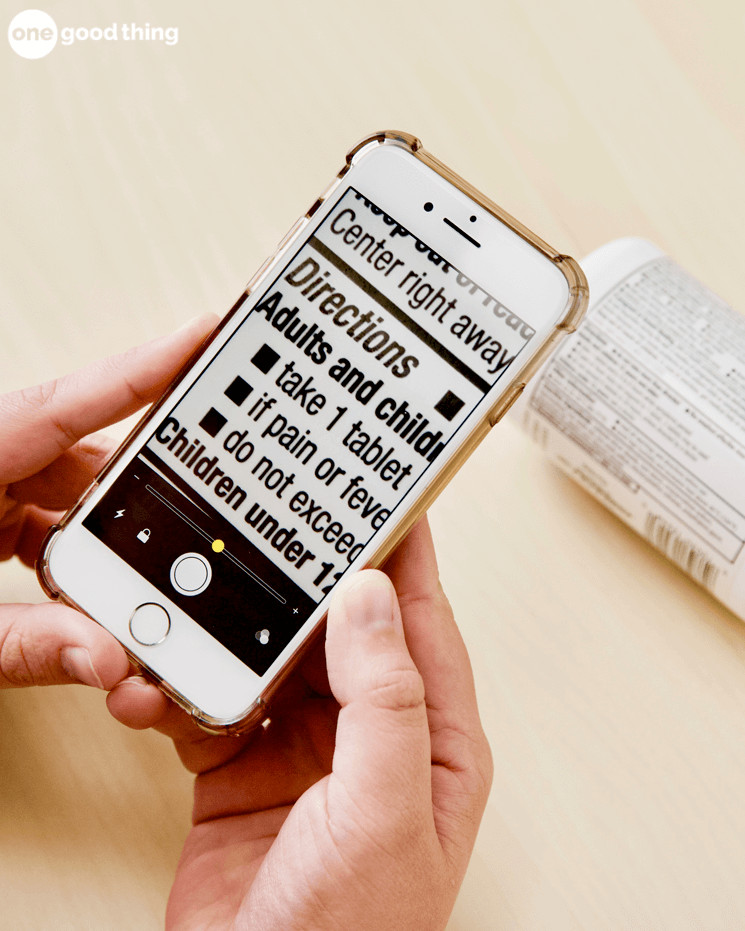
- Turn on Magnifier! This handy tool acts as a magnifying glass, allowing you to “zoom” in on tiny print and other small writing using your camera.
Related: 9 MORE Brilliant iPhone Hacks That Will Make Life Easier

4. Level Up
Did you know you can use your iPhone as a level when hanging a frame or a shelf? Just open up your compass app, then swipe left to access the level.
5. Shake It Off
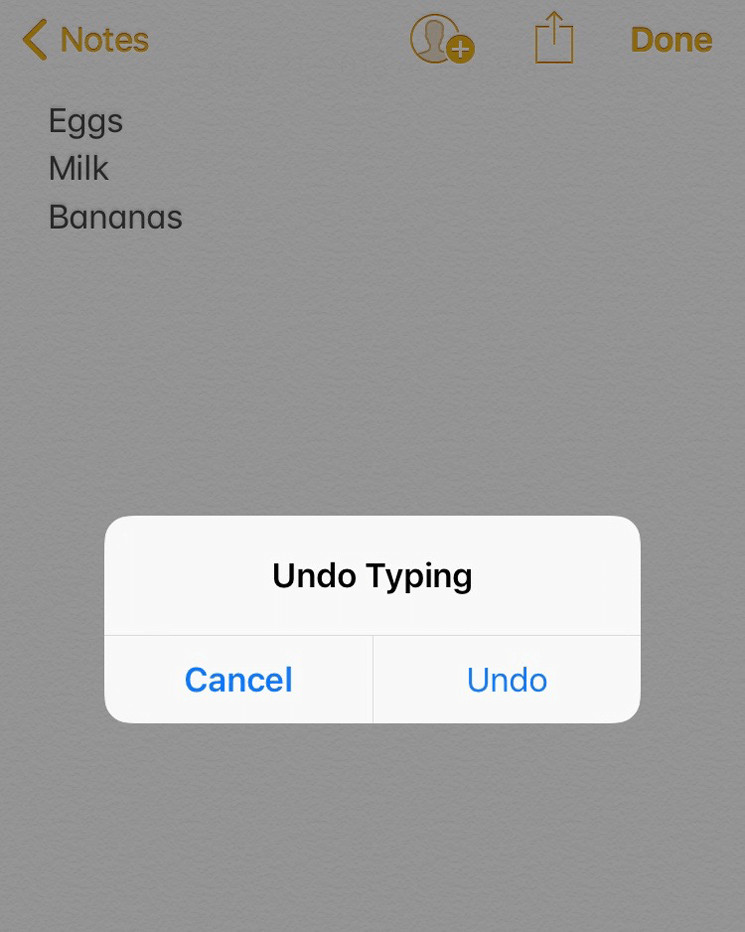
Sometimes you’re typing out a text message, only to reread it and find that you’ve made half a dozen typos. No need to worry! Just give your phone a shake to undo what you’ve typed.

6. Night Shift
There’s a great setting on iPhones that puts a yellow tint to the screen after a certain hour in the evening. The yellow screen is less vivid than the standard blue-tinted screen, so it’s a bit easier on your eyes when it’s darker out. You can turn on the Night Shift feature by going to the Display & Brightness section of the Settings menu. It also gives you the option to customize when the Night Shift function turns on and off.
More Ideas You'll Love


7. Home Button Anywhere
There’s a feature called AssistiveTouch that can act as a Home button on any iPhone. (This is great news for those of us with the iPhone X who miss the home button!) Just go to the General section of the Settings menu, then select Accessibility. Go to the AssistiveTouch section to turn it on and customize the options if you’d like.
8. Fast Charge
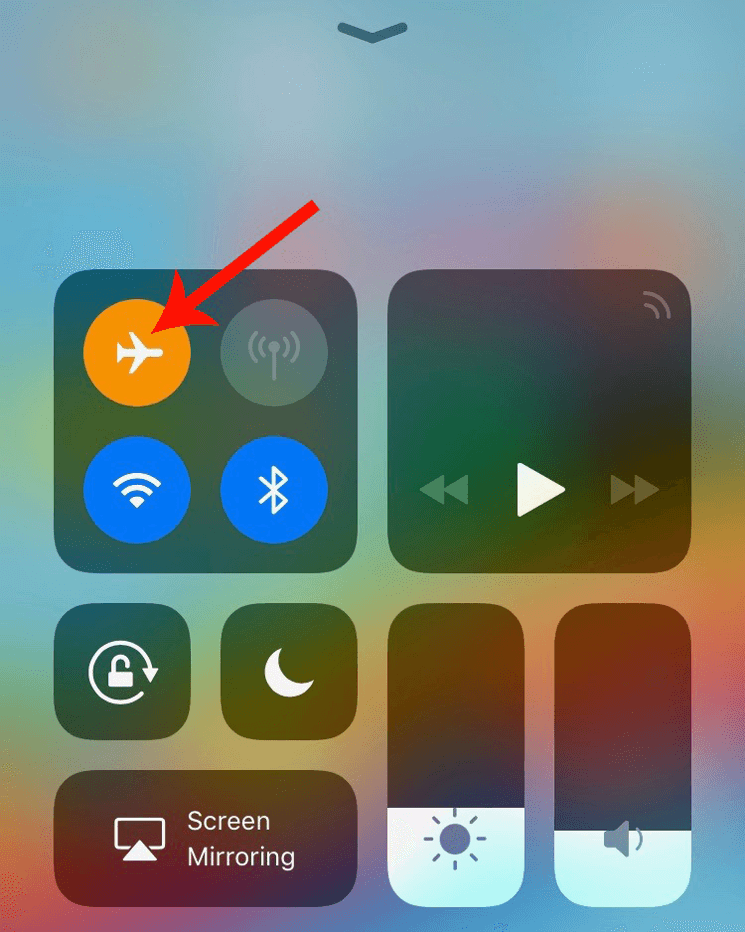
In a rush to charge your phone? Turn on Airplane Mode while it’s plugged in! You’ll get an extra 4% of battery life for every 30 minutes of charging. It’s not a huge boost, but it could be a lifesaver if you’re really in a bind!

9. Sleep Timer
Many of us like to listen to music or audiobooks while falling asleep, but you don’t necessarily want the audio playing all night. But you can use the Clock app to set a “sleep timer” of sorts! When you’re getting into bed, go to the Timer and set a timer for an hour or two. Set the “When Time Ends” option to “Stop Playing.” This tells the app that when the time is up, it should stop playing whatever audio you have going.
10. Snap A Photo
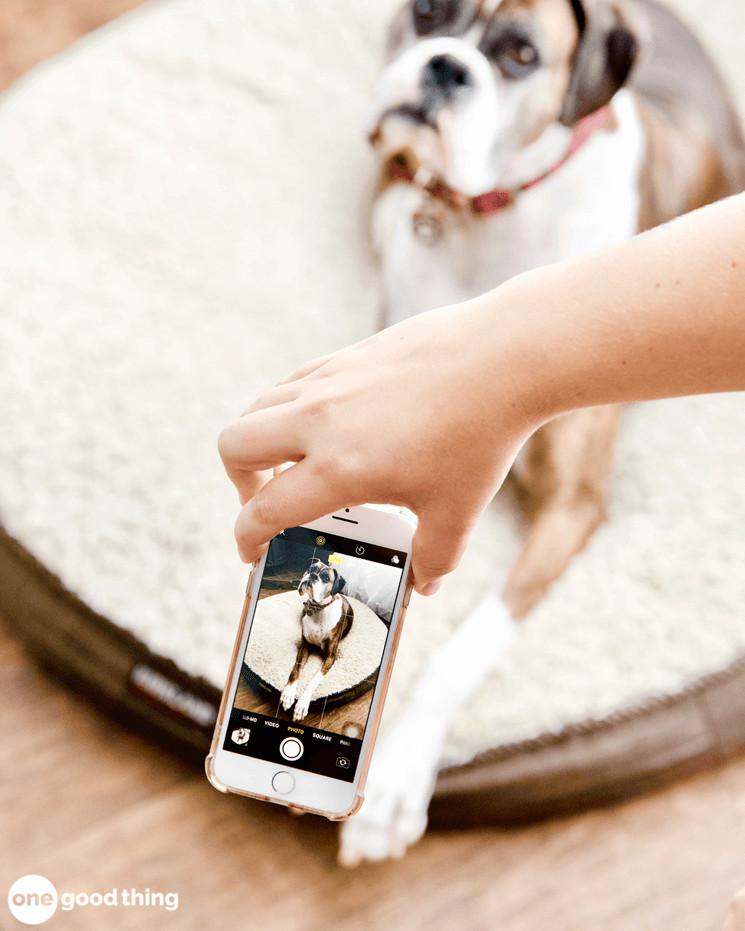
This is a super simple tip, but I often come across people who don’t know about it, so I wanted to include it here! When you’re using the Camera app, you can use the Volume Up button to snap a photo instead of the button on the screen. This is super helpful when you’re trying to get a big group selfie, and it makes it so you don’t accidentally block the camera with your hands.
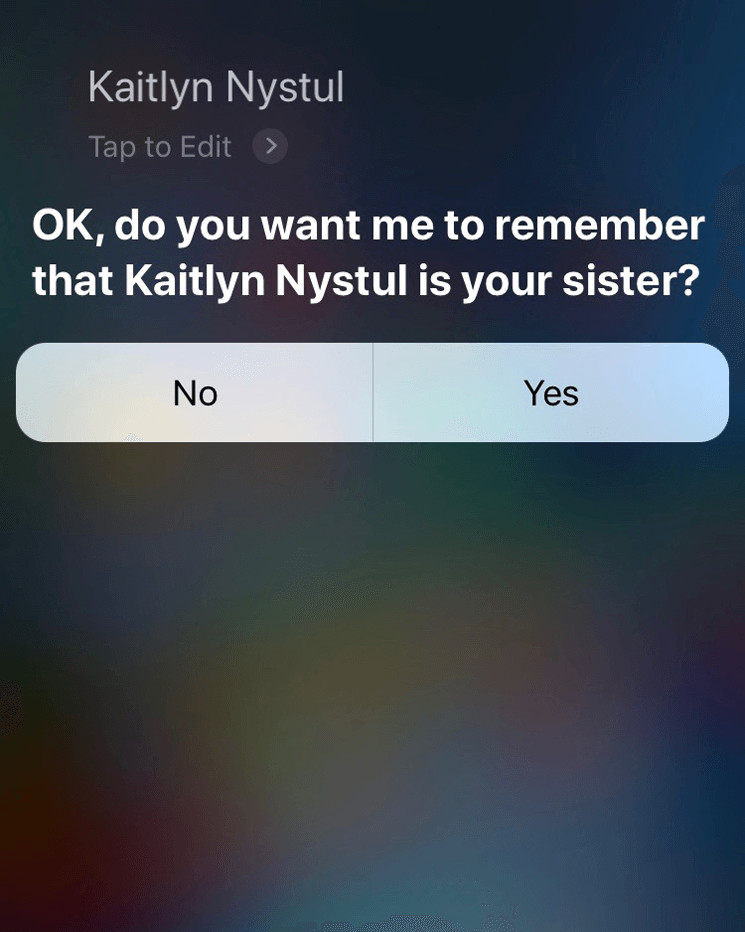
11. Family Matters
You can tell Siri about your family to make it easier to place calls. For instance, tell her to “Call Mom.” Siri will ask who your mom is, and you can assign the proper contact. Siri will remember in the future, so you can call Mom without awkwardly referring to her by her first name. :-) This also works for other family members, so you can call anyone with ease!
For more brilliantly simple hacks you won’t want to miss, be sure to check out my eBook Hack Your Life! You can buy it in my shop, or download it for free if you’re an OGT Plus member!
Want Even More Smartphone Hacks?
- For even more clever hacks that will make your smartphone more useful and easier to use, check out the other posts in the “iPhone Hacks” series!
- Click here to explore the “iPhone Hacks” series archive.



Oh my gosh, you just changed my life with the volume button to take pictures trick. That is going to help tremendously for taking pictures. More natural way to access the picture button for sure.
Please log in or create a free account to comment.Thank you for that! :)
Great tips! Question, what app do you use for the compass and leveler feature?
Please log in or create a free account to comment.Compass and level are built into iOS. For some reason the level is hidden in the compass app. Just swipe the screen.
Please log in or create a free account to comment.Thanks, Mistie
anyone know how to delete all your email messages at once on an iPhone 6s
Please log in or create a free account to comment.Open mail, tap edit, then Mark All, Mark all as read. Tap edit again, tap top msg circle, Press and hold Move button. While still holding Move button, uncheck top msg then release move, Click Bin they should all disappear.
Please log in or create a free account to comment.Hi Linda! Here’s some info about deleting all the messages from your email: https://www.imobie.com/support/delete-all-emails-iphone-ipad.htm
Please log in or create a free account to comment.You don’t say which iPhone and some of these don’t appear to be available on an iPhone 5S – which is what I have. I can’t locate some of these things. :’-(
Please log in or create a free account to comment.I can’t find the magnifier but the compass is on the home page under Extras.
Please log in or create a free account to comment.She did say she has the iPhone X. Some of these features are only on the newer phones.
Please log in or create a free account to comment.Sorry Sis! We used the iPhone 8 for these tips.
Please log in or create a free account to comment.Thanks for letting me know. Explains why I can’t find some of the things.
I see the magnifier apps in App Store, but none has the symbol like the one you show here. Also I want the recommended Apple app. Some apps on the list come with spyware. Don’t want that.
Please log in or create a free account to comment.Go to Settings…General..Accessibility…Magnifer (toggle ON)
Or, depending on your update you can tap the home button 3x’s to turn on the magnifier. Hope this was helpful.
Hi Jillee. Appreciate all your helpful hints :-)
Please log in or create a free account to comment.Harmony, you’re an angel. Thanks for the direction. Now I have the wonderful magnifier! My phone goes with me everywhere, like a clutch bag. With this magnifier, I don’t have to bring my reading glasses to the eateries, be it McD or Tour d’Argent, which I can’t ever afford. Many thanks to both Jillee and you for teaching old “dogs” new tricks.
I didn’t need to download any apps for the magnifier – it should already be in the list of options for your control center. Just type “control center” into the search bar in your settings :-)
Please log in or create a free account to comment.Where is the magnifier? I so need this. lol
Please log in or create a free account to comment.See response to Annie (above)
Please log in or create a free account to comment.Thanks. So. Now, stupid question, but how do I access it? Lol
Access it by swiping up from the bottom of the screen! :-)
Go to your settings, and look for the search bar the top of the page. Type in “control center,” then click on “customize apps.” Add the option for “magnifier” from the list. :-)
Please log in or create a free account to comment.Night shift is my all time favourite, gotta save those eyes and help those sleep patterns! I didn’t know about the custom control centre and love the idea of capturing videos of my screen! Thanks so much for all the tips and tricks, they definitely aren’t always as obvious as you’d first think.
Holly from The Art of Being Holly xo
Please log in or create a free account to comment.Thanks Holly!
Please log in or create a free account to comment.Great ideas……I’m of the older generation and this information is perfect. I didn’t know half of these. I always look forward to seeing your posts. Keep up the good work, thanks
Please log in or create a free account to comment.I’m so glad thanks Gail!
Please log in or create a free account to comment.Is there one to remind you to take your phone along? :-) With these tips, I am sure I will remember that it’s for more than emergency calls. Thank you.
Please log in or create a free account to comment.You could use the “reminders” app!
Please log in or create a free account to comment.A friend of mine told me this one: with “Hey Siri” activated, you can say “Call 911 on speakerphone”. Great if you can’t actually reach your phone.
Please log in or create a free account to comment.Thank you, J This is very useful.
Please log in or create a free account to comment.Very helpful tips! Thanks, Jilliee
Please log in or create a free account to comment.Very helpful, thanks!
Please log in or create a free account to comment.I love these tips! My favorite is the magnifier. I had NO idea! Thanks so much!!
Please log in or create a free account to comment.Please tell me how to turn on the magnifier. Love all the tips!
Please log in or create a free account to comment.Go to your settings, and look for the search bar the top of the page. Type in “control center,” then click on “customize apps.” Add the option for “magnifier” from the list. After doing that, you’ll be able to access the magnifier by swiping up from the bottom of your screen :-)
Please log in or create a free account to comment.Did not know about the magnifier feature or the snap a photo with volume button. The magnifier feature will be especially helpful when I don’t have my readers at the grocery store. Thank you.
Please log in or create a free account to comment.I particularly liked the tip about how to take selfies with side button…makes it so simple now !
Please log in or create a free account to comment.Great ideas. I usually turn my ringer off afterI get home from work. After a certain hour at night I put my phone in do not disturb mode. My main problem now is after I make calls, I’ll get the stupid junk calls that you can’t answer and don’t show any information. I’ll have to contact apple about this issue.
Please log in or create a free account to comment.I also last week had to use the low battery setting on my phone. We had a storm that left us without power and I was unable to charge my phone. This setting is great for situations like this when it’s not possible to charge my phone.
Please log in or create a free account to comment.I have resorted to charging my phone in my car USB when we lost power.
Wow, thanks for these helpful hacks! The tip about the magnifier was really great! I’m always looking for my magnifying glass when I run into too-small print. This will be very handy when I’m out and about, since I don’t bring my clunky magnifying glass along with me. This is better than most magnifying glasses anyway, since they usually only magnify 2x. I can’t wait to use this the next time I encounter “microscopic” print!
Also, the tip about using the volume up button to snap pictures was new to me. That’s another function I’ll use frequently as I’m always snapping pictures of items and their prices in stores to compare with prices for the same item at other stores.
Please log in or create a free account to comment.Great tips! How about some tips for android users, i.e. Samsung. Maybe have “guest contributors” from your readership?
Please log in or create a free account to comment.Great idea!
Please log in or create a free account to comment.That would be great! Do you have any tips Mary Anne?
Please log in or create a free account to comment.